2stitchOrganizer-2.4.0.dmgFind your download
Your browser should show the file you just downloaded.
Please wait until the download is completed, then click on the button with the text 2stitchOrganizer-2.4.0.dmg in the bottom left corner of this window.
FireFox asks you what you want to do with the 2stitchOrganizer-2.4.0.dmg. Choose Open with: DiskImageMounter (default) and click Ok. FireFox should automatically open the installer window.
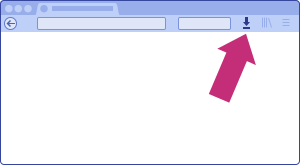
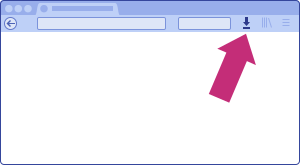
If this does not happen click on the little arrow at the top of this window:
Wait until the download is completed, then click the 2stitchOrganizer-2.4.0.dmg.
Safari should start the download automatically. Click on the arrow icon at the top of this window and wait until the download is finished.

Click on the 2stitchOrganizer-2.4.0.dmg to continue with the installation.
Drag it to Applications
Once the installer opens, drop 2stitchOrganizer into your Applications folder.
You should see a window like the one below. If it doesn't appear, open your Downloads folder in Finder and double-click 2stitchOrganizer-2.4.0.dmg.
Drag the 2stitchOrganizer.app icon onto the Applications folder to install it:

Open 2stitchOrganizer
Launch it from Applications and approve the security prompt.
Open Finder, navigate to the Applications folder, and double-click the 2stitchOrganizer icon to start it.
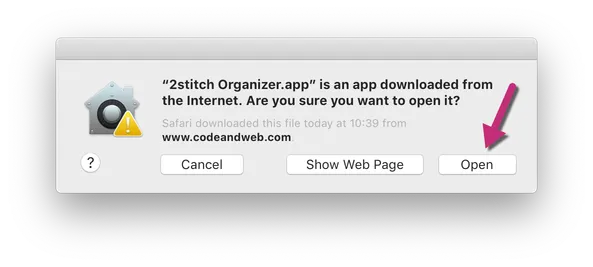
macOS will warn you that this app was downloaded from www.codeandweb.com — that's us (CodeAndWeb is our company; we host 2stitch downloads there). Click Open: