Downloading....
Please click here if your download doesn't start automatically.
Click here to download the 64bit version.
Downloading 2stitch Organizer on your Windows PC
Your browser asks you what you want to do with the downloaded 2stitch-1.1.4-x86.msi. Click the Run button to start the installation after the download.
Microsoft runs a security scan on the file to verify that it does not contain malware. The installation starts right after the check is finished.
If this does not work for you try to find your Downloads folder in Explorer. Double-click the 2stitch-1.1.4-x86.msi to start the installer.
Installing 2stitch Organizer
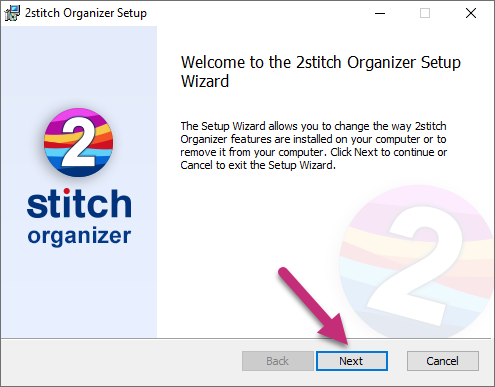
The installer should open the following window. Click Next:
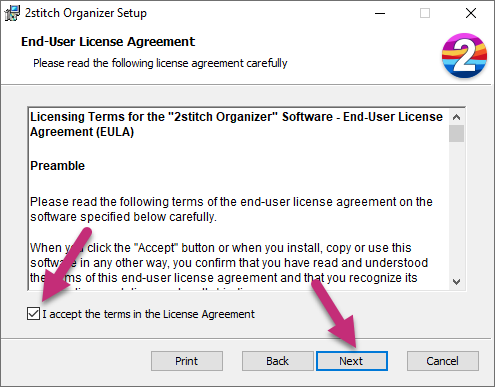
Please take your time to read the license agreement. Click the Checkbox next to I accept the terms in the license agreement. Click Next to continue:
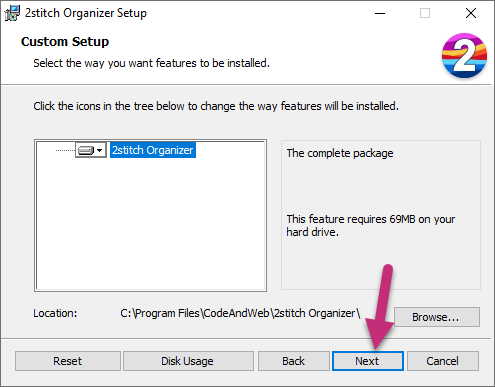
Click Next to continue:
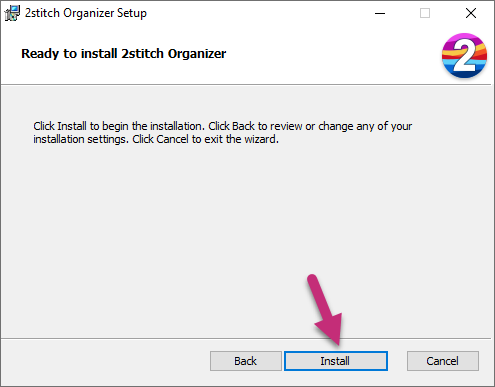
Click Next to start the installation:
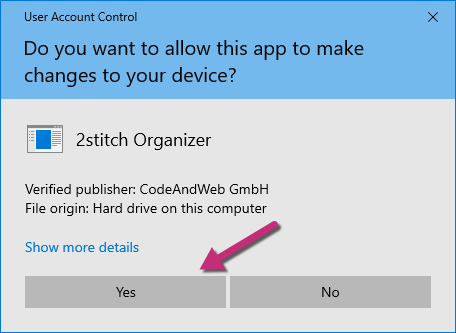
Click Yes to agree to install 2stitch Organizer:
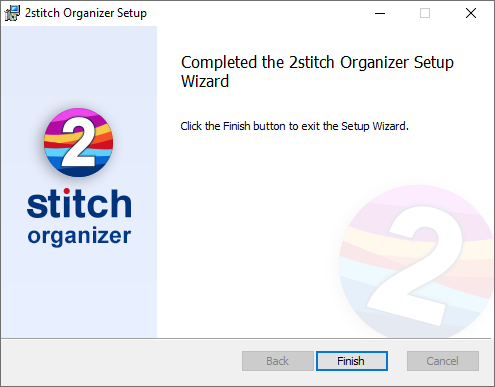
Click Finish to end the installation
You should now see the 2stitch Organizer icon on your desktop. Double click it to start the program.