October 27, 2026
Version 2.3.0: Your Designs, Right in Finder and Explorer
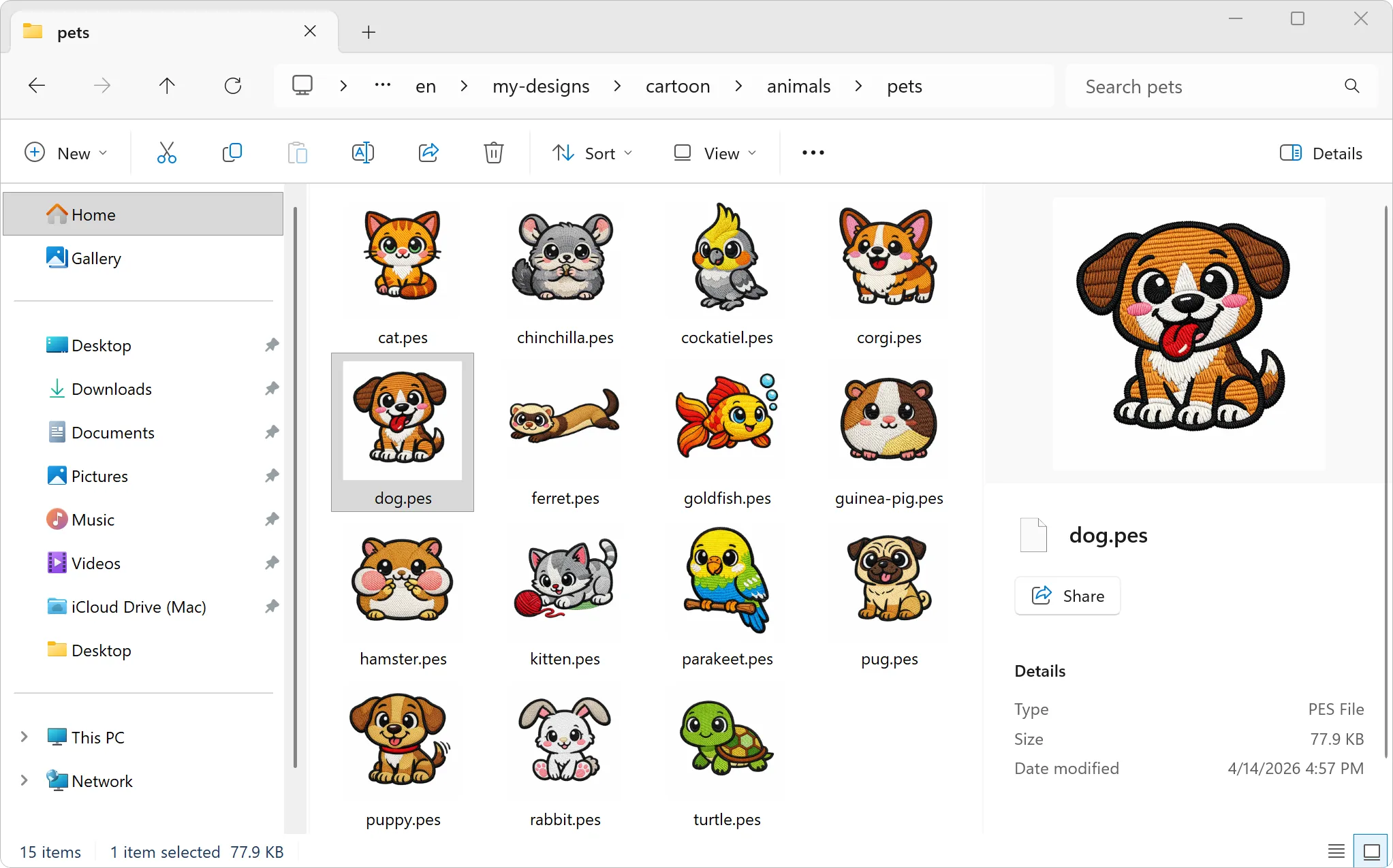
Open a folder of embroidery files in Finder or File Explorer, and what do you see? A row of identical blank icons and a lot of file names. From 2stitchOrganizer 2.3.0 on, you see the designs themselves.
Your designs in Finder and File Explorer
Once 2stitchOrganizer is on your computer and you’ve started it once, Finder and File Explorer show your embroidery files as little pictures of the design. That works in any folder, not just in your library: a folder of designs you’ve just unpacked shows what’s in it before you’ve added it anywhere.
- On a Mac: in every Finder view, in Get Info, and as a bigger preview when you press the space bar.
- On Windows: in File Explorer’s icon views and in the Preview pane.
The previews work while 2stitchOrganizer is activated: during your 7-day trial, which starts the first time you open it, and for as long as your subscription runs. All the details are in the FAQ.
Restore a backup on another computer and keep your tags
New computer, or a new user account? Restore your backup there and keep your tags. If your design folders sit in the same place inside your user folder, 2stitchOrganizer finds them on its own, even when your user name has changed. If it then asks about designs it can’t find, click No. How to move to a new computer.
Point a missing folder to its new location
Moved your designs to a new drive, or renamed the folder? 2stitchOrganizer now shows the old folder as missing and keeps its designs, with their tags, notes and favorites. Click Select New Location… and pick the folder where they are now. If all the designs are there, everything comes along; if not, 2stitchOrganizer shows you first what will change. Here’s how.
When macOS blocks a folder
macOS guards some folders, like Desktop and Documents, and sometimes it doesn’t let 2stitchOrganizer read one of them. If that’s a folder you added to your library, 2stitchOrganizer now says so and opens the right settings for you. If it’s a folder inside your library, here’s what to do.
Little things that make a difference
Adding and removing folders is quicker now, and scrolling stays smooth while 2stitchOrganizer creates previews. When you restore a backup, you’re always the one who decides what stays in your library.
Get 2.3.0
Download the new version from the download page. Start it once, and the previews show up in Finder and File Explorer.